
YouTube Studio Insights: Where to Find Your Old Metrics
YouTube Studio now calls its desktop Analytics page Insights. To find the detailed reports, open Insights, then Advanced mode. Watch time and engaged views are under Metrics; traffic sources are under Breakdown. Use Controls for a custom date range. The lookup table below helps you choose the right path, including the separate Revenue page for channels in the YouTube Partner Program.
Find the metric you used before
The left menu now says Insights on desktop. Open it for your channel overview, or choose Content, hover over a video and select Insights to work with that video’s data. [1]
Start with the metric you came to check. The table below shows where to find it and what to check before comparing it with an older report. [2]
| What you want | Where to look on desktop | Check before comparing |
|---|---|---|
| Watch time | Insights → Key metrics; or Advanced mode → Metrics → Watch time (hours) | Match the date range and check whether you are viewing a channel or one video. |
| Engaged views | Insights → Advanced mode → Metrics → Engaged views → Apply | Read the column label. Views and Engaged views are separate choices. |
| Traffic sources | Insights → Advanced mode → Breakdown → Traffic source | Check Metrics again after changing the breakdown. |
| Estimated revenue | Insights → Revenue | Available to channels in the YouTube Partner Program. Revenue data has a reporting delay. |
| A custom date range | Insights → Advanced mode → Controls → date selector → Custom | Set the same start and end dates as the report you are comparing. |
| A report export | Insights → Advanced mode → Export current view | Choose your content, dates, breakdown and metrics before exporting. |
Scroll horizontally to read all columns.
Open YouTube Studio and try the row for the metric you need. Sign in to the channel whose report you want to inspect.
Add engaged views to your report
If you used engaged views to review your Shorts, add that metric explicitly. A table headed Views is not enough to tell you how your engaged views changed.
- Open Insights and select Advanced mode.
- Open Metrics and look for Engaged views in the Overview group.
- Select Engaged views, then Apply.
- Read the resulting column heading and confirm the date range before comparing it with an older report.
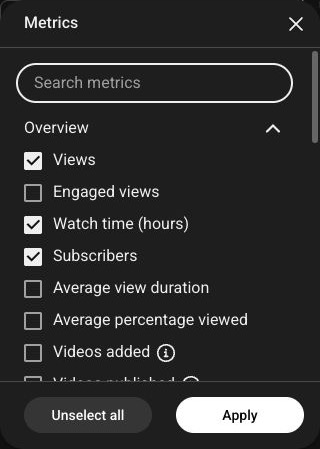
You can keep Views alongside Engaged views when both are available. They answer different questions; our guide to YouTube views versus engaged views explains the definitions and where they matter for Shorts.
Changing Breakdown can change the available metrics. In our check, switching to Traffic source reset the selected metrics, so we had to open Metrics again. After any breakdown change, check the column headings before treating the report as a like-for-like comparison. [2]
Keep the same dates and scope
A familiar metric can still look different if the report covers another period or another set of videos. In Advanced mode, use Controls to check the selected channel or video and the date range. Open the date selector and choose Custom when you need exact start and end dates. [2]
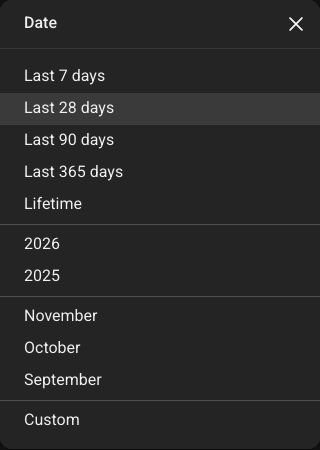
Say an older report covers October 1 to 31. Set the new report to those dates, select the same channel or video, and choose the same metric. Comparing October’s total with a rolling 28-day card would mix two different periods.
For traffic sources, choose Traffic source under Breakdown, then check which metric the report displays. Breakdown determines how the rows are grouped; Metrics determines the numbers shown in those rows. [2]
Once the report is set up, use Export current view to download that view. If you expect to return to the same setup, Advanced mode also offers Save report. Give it a name you will recognize when you next need it. [2]
If a report still looks missing
Revenue is missing
YouTube’s Revenue page is available to creators in the YouTube Partner Program. On an eligible channel, open Insights, then Revenue. If you manage several channels, check that you are signed into the right one. Estimated revenue typically takes two days to appear, so the newest dates may be incomplete. [3]
A metric or table has no data
First check the selected content and dates. Then check whether the metric is supported for the current breakdown. YouTube notes that available metrics can change with the breakdown, and some reports have limited data. Check a period with known activity before deciding that old data is missing. [1] [2]
You see Research instead of a familiar report
The desktop account we checked showed a Research tab, while YouTube’s general help page still described a Trends tab. That area helps you explore audience interests and content ideas. For watch time, engaged views or traffic sources, use Insights and Advanced mode; you do not need to find them in Research. [1]
Once you have matched the dates, content and metric, a lower number may be a real performance change. Continue with what to check when YouTube views suddenly drop to investigate the traffic and audience signals behind it.
Sources and how we checked
Checked on November 17, 2026. We opened the English desktop interface and tested adding Engaged views, switching to Traffic source and locating Custom dates. The test channel had no published videos and was not in YPP, so this verifies navigation, not reporting accuracy or Revenue access. Revenue instructions in this guide are based on YouTube Help. Labels may differ during the rollout. The screenshots show the English desktop controls from that check, cropped to exclude account details and report data.
- YouTube Help: Get started with YouTube Insights: desktop entry points, report areas and data availability.
- YouTube Help: Use Advanced Mode for analytics reports: content and date controls, breakdowns, metrics, saved reports and exports.
- YouTube Help: Check your YouTube revenue: YPP access, the Revenue page and reporting delays.