
Create a script with Kabo
Start from an idea, a topic, or a reference, then work through the script wizard.
Updated October 21, 2026You’ll need: A signed-in Kabo account. Have a topic or accessible reference link ready if you want to start from one.
On this page
Choose how to start
Open Scripts → New script.
Choose Suggest me ideas for help finding a direction, I have a topic to provide one, or From a link to work from a reference video.
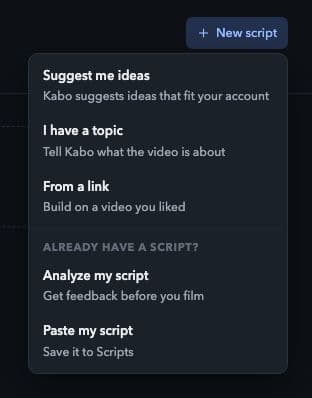
Choose a starting point from New script. Local interface preview · Kabo Web Agent 44f3bda4. Open image to enlarge. Provide the requested input.
For a topic, explain what the video is about. For a link, provide an accessible video URL. Read the form before submitting.
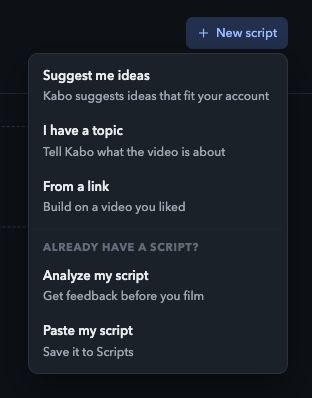
Use the existing-script options for existing work.
Analyze my script is for feedback on text you already have. Paste my script saves existing text. These differ from starting a new idea.
Work through the wizard
Pick an idea.
Choose one of the proposed ideas, or write your own when the field is offered.
Pick a hook.
Choose the opening that fits what the video will actually deliver. You can write your own instead of accepting a suggestion.
Pick a style.
Choose the rhythm or style for the draft. Add your own direction in the optional free-style field when useful.
Pick a length.
Choose 30, 45, 60, or 90 seconds. This guides the draft; actual spoken timing depends on your delivery.
Read the generated script.
Wait for the writing step to complete. Review facts, examples, tone, and timing before treating it as ready to film.
Edit and keep your draft
Open the saved script from Scripts to edit or copy it. For a script created through the wizard, Generate another is available when you want another generated draft.
Use the script review workflow to get feedback before filming. If another edit or device has changed the project, read the conflict message and retain your own text before trying again.
What happens after writing
Scripts are saved in your workspace. Creating a script does not record or publish a video.
Generate with AI and Record yourself may appear with Planned or Coming soon labels. They are not instructions to use a completed video-production feature. To analyze a cut you have already made, upload it through Videos.