
Record a video with the teleprompter
Set up your camera and script, record a take, then save or download it.
Updated November 5, 2026You’ll need: A saved script, a camera and microphone, and browser permission to use them. A connected social account is required to save takes to Kabo.
Open the recorder
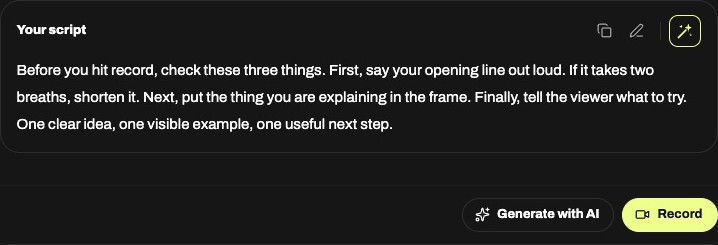
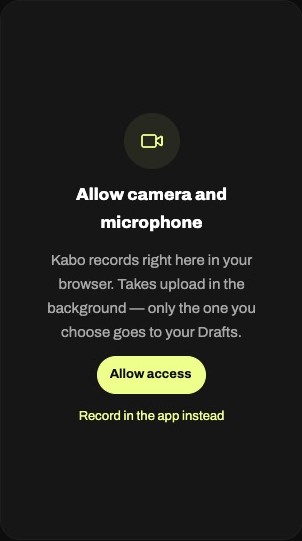
Open a saved script and choose Record. Allow camera and microphone access. In Studio settings, choose your camera, microphone, portrait or landscape format, and countdown before recording. Adjust text size and scrolling so you can read comfortably.
Record and review a take
Choose Start recording, then Finish recording when done. Play the take to check the picture and sound; use Retake if needed. A take stops at 10 minutes. Voice-follow scrolling depends on browser speech recognition; use fixed-speed scrolling if it is unavailable.
Save or download before leaving
Choose Use this take and keep the tab open until saving finishes. The take is saved to Videos → Drafts and linked to the script. If you have no connected account or saving fails, download a copy before leaving. Do not discard an unsaved take you want to keep. Recording does not publish a post.