
Generate an AI video from a script
Prepare your footage, confirm the model, and find the finished video.
Updated November 5, 2026You’ll need: A saved script and 1–4 videos of you speaking clearly to camera. Generation must be available in your workspace.
On this page
Prepare your script and footage
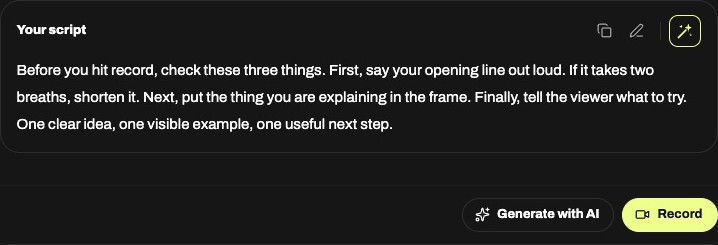
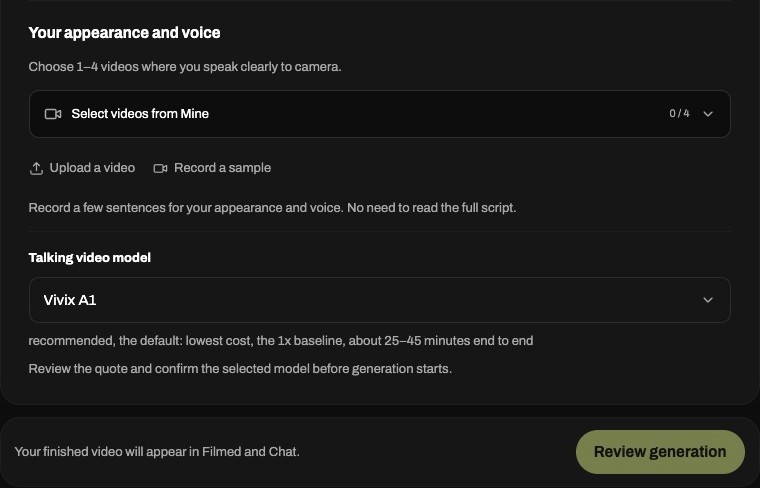
Open your saved script in Scripts, finish editing, then choose Generate with AI. In Studio, select videos from Mine, upload a clip, or record a short sample. Use footage where your face and voice are clear. Wait for uploads to finish.
Review before production
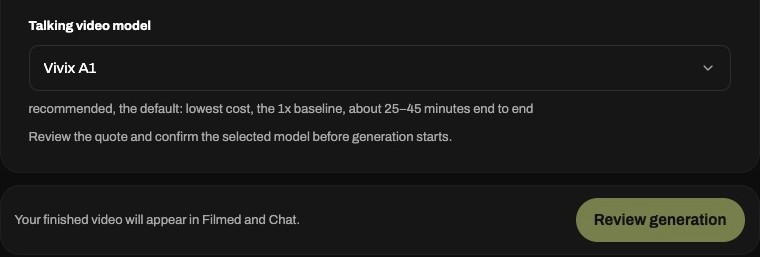
Choose a model when offered, then select Review generation. Review the prepared model, estimated length, and any Credits confirmation shown before choosing Confirm and generate. If a feature or source combination is unavailable, follow the message in Studio rather than submitting again.
Find the result or resume progress
After production starts, you can leave Studio and return to its progress. A connection error does not necessarily mean the job stopped. When ready, play or download the video, or choose Open in Videos. The result appears in Filmed and Chat and is linked to the script. Creating it does not publish it to a social platform.